spacer

Best Firefox Extensions

 
If you don't mind doing without a built-in email client, chat client and WYSIWYG editor then Mozilla Firefox is a better choice over Seamonkey because of the fact that it contains an extension manager allowing you to easily review, configure, update and even uninstall extensions.


GENERAL NOTES:
  • My picks for the best Firefox extensions are the ones that customize Firefox in order to make it more user friendly and that make web authoring synonymous with two key words: quick and painless. To augment my picks, you might like to consult the following sites:
    Add-ons Mirror
    Extension Room
  • I have successfully installed and run all the extensions listed below in Firefox 3.0.10
    Need help?

    Installing Firefox Extensions


    First of all, I'm assuming that you running Firefox 3.0 or above and you are running Windows XP or above.

    Now...

    If after clicking on the Install link, you get a warning running across the top of Firefox saying:

    ffinstallwarning2 (1K)
    Firefox prevented this site (www.ironspider.ca) from asking... (etc.)

    Click on the Allow button in the top right corner in order to allow ironspider.ca to install the add-on (extension) in Firefox.

    To configure Firefox so that you can install any or all extensions listed on this page (or site), do the following:
    1. Click on Tools » Options... » Security
    2. Beside "Warn me when sites try to install add-ons", click on Exceptions
    3. In the Address of web site text box, enter the following:
    4. Click on Allow and then click Close and OK to close all dialogs and apply settings.

    An alternative method to install extensions:
    1. Download the extension using the Download link.
    2. In Firefox, click on File » Open File
    3. Navigate to the directory your downloaded extension is located in.
    4. Click to select the extension file (*.xpi) and then click Open


Mozex
  
COMPATIBLE WITH:3.0.x
FILE NAME/VERSION # MozEX_1.9.9.xpi
AUTHOR'S HOME PAGE: http://mozex.mozdev.org/index.html

CLICK HERE TO INSTALL
CLICK HERE TO DOWNLOAD

NOTE: Please DO NOT HOTLINK (link directly) to the Download or Install links. You are, however, most welcome to link to this page. Here's the URL:


If you're bugged by the fact that you can't view a web page's source code in Firefox using Windows Notepad (á la Internet Explorer) then you can easily remedy this by installing Mozex which is basically an acronym for Mozilla external (programs). This extension will also integrate Firefox with other external programs in order to enable editing textarea form fields, handle mailto, news, telnet and FTP links and downloads. For more information about these Mozex functions, go to the author's home page.

My primary interest in this extension was the Source Code -> External Editor function.


CONFIGURATION NOTES ~

To configure Mozex:
  1. Click on Tools » Add-ons » Extensions » Click to select Mozex » Options
  2. Click on the Source tab and in the 'Source editor' text box, enter:

  3. Click to close all dialogs to apply the setting.

    NOTE: You can use any text editor or HTML editor in place of Windows Notepad to view the page source using Mozex. To do so, on the Mozex Options dialog » Source tab, (see above), use the 'Browse' button beside the 'Source editor' text box to locate and select the program you wish to use as a text editor to view web page source code. After selecting your program, the path to your selected program will appear in the 'Source editor' text box. At the end of the program path, type a space and then %t afterwards.

    Example:

    "C:\Program Files\Chami\HTML-Kit\Bin\HTMLKit.exe" %t

    The above line would set HTML Kit (assuming you have it installed) to be the text editor to view page source using Mozex.

To use Mozex to view page source:
  1. Right click anywhere on a web page whose source code you wish to view in Windows Notepad (or your favourite text editor)
  2. In the context menu, click on mozex » View Page Source

To uninstall:
  1. Click on Tools » Add-ons » Extensions
  2. Click to select Mozex
  3. Click on Uninstall.
  4. Restart Firefox.


IE View
  
COMPATIBLE WITH:Firefox 3.0.x
FILE NAME/VERSION # IE View 1.3.7
AUTHOR'S HOME PAGE:http://ieview.mozdev.org/

CLICK HERE TO INSTALL
CLICK HERE TO DOWNLOAD


This extension will place an item in the right-click context menu that will allow you to open the current page in Internet Explorer (assuming that you're using Windows and/or you have Internet Explorer installed). This was intended to be used for loading those occasional pages out there that tend to malfunction in Firefox but it can also be used simply as a web design tool to ensure cross-browser compatibility.

After installing, to use IE View:
  • Right-click on the page in Firefox and then click on View This Page in IE.

    OR

  • Right-click on a hyperlink and then click on Open Link Target in IE.

You can also have Internet Explorer always open when a certain web site/page is loaded in Firefox. To do this:
  1. Click on Tools » Add-ons » Extensions
  2. In the Extensions dialog, click to select IE View and then click on Options
  3. In the IE View Preferences dialog, use the Add Site text box to type in or copy-and-paste the URL of the web site/page you wish to always open in Internet Explorer.
  4. Click Add and then click OK to apply setting.

To uninstall:
  1. Click on Tools » Add-ons » Extensions
  2. Click to select IE View
  3. Click on Uninstall.
  4. Restart Firefox.


Web Developer Toolbar
  
COMPATIBLE WITH:Firefox 3.0.x
FILE NAME/VERSION # Web Developer 1.1.6
AUTHOR'S HOME PAGE:http://www.chrispederick.com/.../webdeveloper/

CLICK HERE TO INSTALL
CLICK HERE TO DOWNLOAD


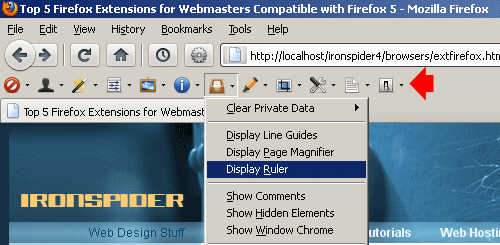
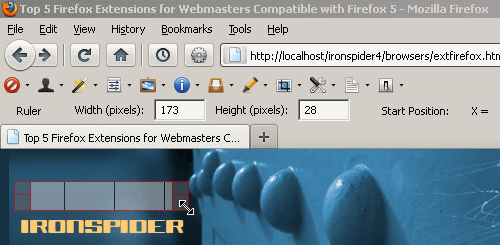
This extension will easily put Firefox into overdrive by endowing it with a dashboard of over 50 options providing all kinds of highly useful information and various handy tools for web authors. This includes disabling Javascript, hiding images, finding images with no alt attributes, showing block elements, showing block sizes, validating source code, outlining deprecated elements, editing CSS files with real-time preview results and much, much more. This extension is an absolute MUST-HAVE.


NOTES:
  • To put a Web Developer button in the Firefox Navigation toolbar:

    1. Right-click on the Navigation toolbar and then click on Customize.
    2. Drag and drop the 'Web Developer' button to the Navigation toolbar.
  • You can toggle the Web Developer toolbar on and off by clicking View » Toolbars » Web Developer Toolbar (or by clicking on the 'Web Developer' button in Navigation toolbar if you have one as described above).
  • Most of the functions are pretty straightforward and self-explanatory. Just check them out and see what happens.
  • One or two of the options on the right side of the toolbar may be cut off if you're using 800 x 600 screen resolution.

To uninstall:
  1. Click on Tools » Add-ons » Extensions
  2. Click to select Web Developer
  3. Click on Uninstall.
  4. Restart Firefox.


Firebug
  
COMPATIBLE WITH:Firefox 3.0.x
FILE NAME/VERSION # Firebug 1.2
AUTHOR'S HOME PAGE:http://www.getfirebug.com/

CLICK HERE TO INSTALL
CLICK HERE TO DOWNLOAD


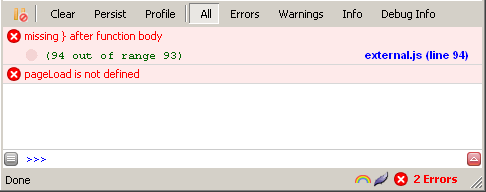
Here's another absolute must-have if you're into writing up your own Javascripts and you've found yourself going nuts trying to figure out why they won't work. This extension will help you quickly and easily zero in on Javascript errors and will tell you exactly what went wrong (as opposed to the vague, snippy Javascript error messages issued by Internet Explorer, e.g., 'Object expected'). Quite frankly, I don't know what I'd do without this extension (probably spend a lot of time weeping over my keyboard).


NOTES:
  • After installation, Firebug will display as a little bug icon in the bottom right corner of Firefox. To enable Javascript debugging, do this:

    1. Go to the site you wish to do Javascript debugging on.
    2. Right click on the Firebug icon (bottom right) and click on Open Firebug in New Window.
    3. Click on the Console tab and then check 'Console' and 'Script'
    4. Click on Enable selected panels for [your site]
  • With Javascript debugging enabled (see above), Firebug will notify you when the current page contains Javascript errors by displaying a red circled 'X' in the bottom right corner of Firefox followed by the number of errors. To view the error messages, click on the number of errors notification to open the Firebug console. The error messages will be listed in the console along with which web document contains the errors, which lines of code in that document are producing the errors and the respective line numbers.

To uninstall:
  1. Click on Tools » Add-ons » Extensions
  2. Click to select Firebug
  3. Click on Uninstall.
  4. Restart Firefox.


Retro Find
  
COMPATIBLE WITH:Firefox 3.0.x
FILE NAME/VERSION # Retro_Find_2.2.xpi
AUTHOR'S HOME PAGE:http://test.pluckedfromobscurity.com/...

CLICK HERE TO INSTALL
CLICK HERE TO DOWNLOAD

If the find-before-you-finish-typing style of the Firefox 'Find' box starts you cursing six ways from Sunday then this extension will bring you guaranteed relief. Just install it and presto— You've got yourself a nice retro-style Find dialog that pops up when you press Ctrl + F on your keyboard and then DOESN'T DO ANYTHING until you tell it to (i.e., click on the 'Find Next' button). This was one of my biggest pet peeves with Firefox and, until I found this extension, I quite often reloaded a web page in Internet Explorer (*gasp*) before using the Find function.


To use Retro Find:
  • Press Ctrl + F on your keyboard

    OR

  • Click on Edit » Find in This Page...

To uninstall:
  1. Click on Tools » Add-ons » Extensions
  2. Click to select Retro Find
  3. Click on Uninstall.
  4. Restart Firefox.


SaveWithURL
  
COMPATIBLE WITH:Firefox 3.0.x
FILE NAME/VERSION # savewithurl-FF30-0.2.3.xpi
AUTHOR'S HOME PAGE:???

* The version supplied here is one that I bumped and repackaged to be compatible with Firefox 3.0.x


CLICK HERE TO INSTALL
CLICK HERE TO DOWNLOAD

Another major pet peeve of mine with Firefox was the fact that it doesn't save the URL in a comment tag in the source code when you save a web page to your hard drive. For those who don't know, when you save a web page using Internet Explorer (IE), it will insert a comment tag in the saved file's source code indicating the URL that the page was saved from. For example, if you used IE to save the web page you're currently reading, you would find the following near the top of the source code of the saved .htm file:

<!-- saved from url=(0048)http://www.ironspider.ca/browsers/extfirefox.htm -->

[Note: In case you're wondering, the number appearing in parentheses (0048) refers to the number of characters in the URL.]

I find the URL of a saved web page to be vital information as a typical online session for me consists of doing some research, saving several web pages to my hard drive for later reference and then logging off the internet so that I can work offline. Then should I wish to retrieve the URL of any saved web pages, all I have to do is take a look at the source code of the saved web page and there it is. Now with the SaveWithUrl extension, I don't have to switch to IE to save web pages (yes, I used to do this... shame on me... I know...).


To use SaveWithUrl:
  1. Click on File » Save with URL
  2. Save the web page as you normally would.

To retrieve a URL from a saved web page:
  1. Open the saved web page in Firefox.
  2. Click on View » Saved page » Original address

After using SaveWithUrl, the saved URL will also appear in the saved page's source code in a <meta> tag bearing the attribute/value pair name="originalURL". Hence, if you saved the page you are currently reading, you would find the following in the source code (right after the <head> tag):

<meta content="http://www.ironspider.ca/browsers/extfirefox.htm" name="originalURL">


To uninstall:
  1. Click on Tools » Add-ons » Extensions
  2. Click to select SaveWithURL
  3. Click on Uninstall.
  4. Restart Firefox.


Word Count
  
COMPATIBLE WITH:Firefox 3.0.x
FILE NAME/VERSION # Word_Count_0.3.xpi
AUTHOR'S HOME PAGE:http://roachfiend.com/.../word-count/

* The version supplied here is Word Count 0.3 that I bumped and repackaged to be compatible with Firefox 3.0.x


CLICK HERE TO INSTALL
CLICK HERE TO DOWNLOAD

This is a great little extension that will render a quick word count of any text you select on a web page displayed in Firefox. You may find this useful to keep track of how verbose (or bereft of content) your web pages are so that you can adjust accordingly. And as may or may not have noticed, I tend to be on the verbose side so with that, I'll keep this description short and sweet.

[Word count in the above paragraph: 76 words (*chuckle*)...]


To use Word Count:
  1. Select text on a web page by clicking and dragging your mouse pointer.
  2. Right click on the selected text and click on Word Count.

To uninstall:
  1. Click on Tools » Add-ons » Extensions
  2. Click to select Word Count
  3. Click on Uninstall.
  4. Restart Firefox.


Web Color Names
  
COMPATIBLE WITH:Firefox 3.0.x
FILE NAME/VERSION # webcolornames-1.0.14_OK3.0.xpi
AUTHOR'S HOME PAGE:???
* The version supplied here is WebColorNames 1.0.14 that I bumped and repackaged to be compatible with Firefox 3.0.x


CLICK HERE TO INSTALL
CLICK HERE TO DOWNLOAD

This extension will allow you to open a dialog displaying a list of 140 standard web color names. The list —which can be sorted by name or color— shows the actual color, the officially recognized color name and its associated hexadecimal color code. The dialog also provides buttons to copy the name or the color code to the clipboard and displays RGB values. This is another must-have for any web designer.


To use Web Color Names:
  1. Click on Tools » Web Color Names

To uninstall:
  1. Click on Tools » Add-ons » Extensions
  2. Click to select Web Color Names
  3. Click on Uninstall.
  4. Restart Firefox.


Menu Editor
  
COMPATIBLE WITH:Firefox 3.0.x
FILE NAME/VERSION # Menu Editor 1.2.6
AUTHOR'S HOME PAGE:http://menueditor.mozdev.org/index.html

CLICK HERE TO INSTALL
CLICK HERE TO DOWNLOAD

Here's an extension that will facilitate customizing the menus that drop down from the File menu bar running across the top of Firefox (File, Edit, View, Go, etc) as well as the Context Menu system that appears when you right-click anywhere within the browser viewport. This is excellent for those who have installed a kazillion extensions into Firefox and now have menus bloated with a lot of unwanted options.


To use Menu Editor:
  1. Click on Tools » Add-ons » Extensions
  2. In the Extensions dialog, click to select Menu Editor and then click on Options
  3. In the Options for Menu Editor dialog on the left side under Edit Menu, select the menu you wish to edit in the dropdown list.
  4. In the window appearing below that, select the menu item you wish to apply settings to and then click on Show or Hide according to what you would prefer. (A green check mark indicates that a menu item will show when the menu is activated while a red X indicates that the menu item will be hidden.)
  5. Click OK to apply settings.

How to put a shortcut to Menu Editor in the Tools dropdown menu:
  1. Click on Tools » Add-ons » Extensions
  2. In the Extensions dialog, click to select Menu Editor and then click on Options
  3. In the Options for Menu Editor dialog on the left side under Edit Menu, select Tools in the dropdown list.
  4. In the window appearing below that, select Customize Menus and then click on Show (this will apply a green checkmark).
  5. Click OK to apply settings.
You may now access Menu Editor by clicking on Tools » Customize Menus...


To uninstall:
  1. Click on Tools » Add-ons » Extensions
  2. Click to select Menu Editor
  3. Click on Uninstall.
  4. Restart Firefox.


See also:
Last updated: Thursday May 07, 2009
Firefox 3.0.10 compatible