Create a Web Page 101
Making Web Pages Intro
What is a Web Page?
Why Make a Web Page?
The History of HTML
Learn HTML or XHTML?
Basic HTML
Basic HTML Tutorials
Basic HTML Necessities
How to Make a Web Page
How to Edit a Web Page
The Basics of HTML Tags
Basic HTML Page Structure
HTML Attributes
HTML Font Codes
HTML Font Codes Intro
HTML Font Color Codes
HTML Font Size Codes
HTML Font Style Codes
HTML Bold/Italic Codes
Combining Font Codes
Formatting Text
Formatting Text Intro
Making Paragraphs
Miscellaneous Formatting
Headings & Subheadings
Creating Hyperlinks
Using Graphics
Using Graphics on the Web
Add Graphics to Your Pages
Graphics and Accessibility
How to Align Graphics
Page Color & Background
Graphics as Hyperlinks
Horizontal Rules
Creating Tables
HTML Tables Tutorials
HTML Table Fundamentals
Background & Border Color
Table Frames & Rules
Table Width and Alignment
Cells 1 -Space & Alignment
Cells 2 -Row Column Span
Cells 3 -Width & Height
Making Lists
HTML Frames
HTML Frames Tutorials
Using Frames for Layout
Advanced Frame Layouts
Putting Hyperlinks in Frames
Frame Border Width
Color, Margin and Control
Problems with Frames
SmartFrames: A Solution
SSI: An Alternative to Frames
Web Page Forms
Making Feedback Forms
A Simple Feedback Form
Installing NMS FormMail
Debugging Your Setup
My Web Host is Out to Lunch
User Input Components
Text Fields
Checkboxes & Radio Buttons
Dropdown Menus
Push Buttons
Layout and Presentation
Basic CSS
Basic CSS Tutorials
What is CSS?
Why You Should Use CSS
How to Use CSS
Inline Styles
Embedded Style Sheets
External Style Sheets
Class Selectors
ID Selectors
Combining Selectors
CSS Properties
CSS Properties Intro
Font Styles
Width, Height & Spacing
Borders
Backgrounds
Position
Float & Alignment
Hyperlinks
All About Web Hosting
Hosting Your Own Website
What is a Web Host?
Your Website's Home Page
Building a Website Offline
About Free Web Hosting
Best Free Web Hosting
Commercial Web Hosting
How to Get a Domain Name
Ecommerce Web Hosting
Web Hosting Terminology
Free Web Design Tools
Best Free Website Tools
Best Free Text Editors
Best Free Graphics Editors
Free Website Analysis Tools
Setting Up HTML Kit
HTML Kit Introduction
How to install HTML Kit
Screenshot Breakdown
Basic Configuration
Overall Appearance
Shortcuts and Startup
Editing Window
Customizing Toolbars
Using the Favorites Tab
Making a New Actions Bar
Odds and Ends
Free Templates
Free Website Templates
Two Column Fixed Width
Three Column Liquid Layout
Miscellaneous Templates
Dynamic Menu Effects
Two Column Experimental
Terms of Use
About These Templates
Website Templates Help
Getting Started
Template Zip File Download
How to Edit Your Template
What to Edit in the HTML
How to Add Your Logo
Making a Website
Web Design Tips
Web Design Basics
Tables vs. Tableless
Using Tables for Layout
Example Table Layouts
World's Crappiest Web Page
Twitter Backgrounds
Twitter Backgrounds Intro
Cool Twitter Backgrounds
Cool Twitter Backgrounds 2
Plain Twitter Backgrounds
Dark Twitter Backgrounds
Best Twitter Backgrounds
Cute Twitter Backgrounds
Music Twitter Backgrounds
Music Twitter Backgrounds 2
Twitter Backgrounds 101
TERMS OF USE
All About Web Browsers
What is a Web Browser?
Mozilla Firefox
Internet Explorer
Opera
How to Set Up Firefox
Top 5 Firefox Extensions
Contact
How to Add Graphics to a Web Page
<img src="graphic file name">One of the best ways to create an impact with your web page is to add some graphics. Graphics can add color, depth and sparkle to a web page and can serve to catch the eye and retain viewer interest. For these reasons, web page headings are often rendered as graphics since, like book covers, these are the first things a potential viewer sees when surfing the internet.
Graphics are placed on web pages using the
img element. Note that the img element is an empty element, i.e. no content appears between the start and end tags, and hence img only requires a start tag. The 'content' is your graphic file, the name of which is used as a value in the src attribute. The most fundamental syntax for rendering a graphic in a web page uses the img element with just the src attribute:<img src="filename.xxx">...where
filename.xxx is the full name (including file extension) of the graphic you wish to display. Like hyperlinks, you can either use relative addressing or absolute addressing. Relative addressing only requires the graphic file name as the value for the
src attribute providing that the graphic resides in the same directory as the HTML file it is intended to be loaded in. Absolute addressing uses the full URL to the graphic as the src value thereby allowing you to place the graphic in any directory. Thus if the URL to your website is http://www.mywebsite.com/ and you keep your graphics in a directory called 'pics' then your source code would look like this:<img src="http://www.mywebsite.com/pics/filename.xxx">...where
mywebsite is your Second Level Domain name and filename.xxx is your graphic file name. Similarly, if you were constructing a personal home page to be viewed offline, you could specify paths to graphic files on your computer. For example:
<img src="file:///C:/Homepage/pics/filename.xxx">File Formats
Web graphics are generally served up in one of two formats: GIF or JPEG. Hence GIFs carry the .gif file extension and JPEGs carry the .jpeg or .jpg file extension.
Here are some more details:
- GIFs (short for Graphics Interchange Format) only support 256 colors hence they are best suited for simpler illustrations which don't require a fine gradation of colors. On the upside, GIFs retain their quality after data compression rendering a crisp, clean and reliable finished product. Two further advantages are that, unlike JPEGs, GIFs can be animated and GIFs can have their background colors rendered transparent such that the color of your web page will show through.
- JPEGs (short for Joint Photographic Experts Group) support 16 million colors and hence are much better suited for photographs and complex graphics employing a wide range of colors and gradations. JPEGs use what is known as a 'lossy' compression technique that reduces the quality of your image after compression depending on how much you compress it. When saving or converting your image to JPEG format, most graphic editors will offer a range of compression percentages to choose from. You will have to decide between greater compression and thus lower image quality or lesser compression and higher image quality.
Fast Loading Pages
The thing to keep in mind with both GIFs (especially animated GIFs) and JPEGs is that large file sizes can significantly increase the time it takes to load your web page. The typical web surfer is one of the most demanding individuals on the face of the earth and much discussion has been devoted to the subject of how long they are willing to wait to see a fully loaded web page. In fact, Google announced in April 2010 that how fast your website loads will be one of the factors used to decide how well your site ranks in its search results pages.
You can use the Google Page Speed Online tool to see how fast any web page loads and get a page speed score (according to Google). If you have images that need optimizing, it will be automatically listed as a clickable link reading 'Optimize Images' in the Details section of the resulting page speed report. Clicking through on that link will give you exact details about which images on the web page need to optimized and by how much.
Page Speed Online results for IronSpider.ca home page
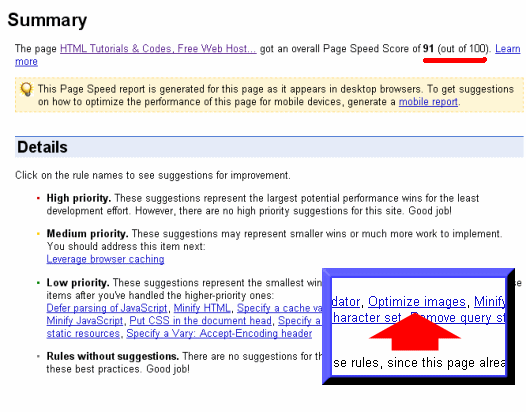
For instance, if you run the Iron Spider home page through the Page Speed tool, you'll see I get a score of 91 (not too shabby!) although according to Google there is still room for improvement by optimizing three of the images used there to save 1.7KB in image file sizes. A trifling amount but, well, you get the picture (it's on my to-do list!)
So as you can see, keeping your graphics file sizes small by optimizing compression of your JPEGs and taking care when constructing animated GIFs keeps the total file size of your web page small and makes for quick loading pages. This means less viewers throwing their hands up in despair and running out the door screaming, "This is taking too long!!" and could even mean higher rankings for your page in Google search results.
Best Free Stuff
for webmasters
for webmasters
Free Text Editors
Free Graphics Editors
Website Analysis Tools
Free Website Templates
See also:
If you need a .COM web address, you can get one quick and easy at...
| INTRO | TOP | NEXT ~> |