Create a Web Page 101
Making Web Pages Intro
What is a Web Page?
Why Make a Web Page?
The History of HTML
Learn HTML or XHTML?
Basic HTML
Basic HTML Tutorials
Basic HTML Necessities
How to Make a Web Page
How to Edit a Web Page
The Basics of HTML Tags
Basic HTML Page Structure
HTML Attributes
HTML Font Codes
HTML Font Codes Intro
HTML Font Color Codes
HTML Font Size Codes
HTML Font Style Codes
HTML Bold/Italic Codes
Combining Font Codes
Formatting Text
Formatting Text Intro
Making Paragraphs
Miscellaneous Formatting
Headings & Subheadings
Creating Hyperlinks
Using Graphics
Using Graphics on the Web
Add Graphics to Your Pages
Graphics and Accessibility
How to Align Graphics
Page Color & Background
Graphics as Hyperlinks
Horizontal Rules
Creating Tables
HTML Tables Tutorials
HTML Table Fundamentals
Background & Border Color
Table Frames & Rules
Table Width and Alignment
Cells 1 -Space & Alignment
Cells 2 -Row Column Span
Cells 3 -Width & Height
Making Lists
HTML Frames
HTML Frames Tutorials
Using Frames for Layout
Advanced Frame Layouts
Putting Hyperlinks in Frames
Frame Border Width
Color, Margin and Control
Problems with Frames
SmartFrames: A Solution
SSI: An Alternative to Frames
Web Page Forms
Making Feedback Forms
A Simple Feedback Form
Installing NMS FormMail
Debugging Your Setup
My Web Host is Out to Lunch
User Input Components
Text Fields
Checkboxes & Radio Buttons
Dropdown Menus
Push Buttons
Layout and Presentation
Basic CSS
Basic CSS Tutorials
What is CSS?
Why You Should Use CSS
How to Use CSS
Inline Styles
Embedded Style Sheets
External Style Sheets
Class Selectors
ID Selectors
Combining Selectors
CSS Properties
CSS Properties Intro
Font Styles
Width, Height & Spacing
Borders
Backgrounds
Position
Float & Alignment
Hyperlinks
All About Web Hosting
Hosting Your Own Website
What is a Web Host?
Your Website's Home Page
Building a Website Offline
About Free Web Hosting
Best Free Web Hosting
Commercial Web Hosting
How to Get a Domain Name
Ecommerce Web Hosting
Web Hosting Terminology
Free Web Design Tools
Best Free Website Tools
Best Free Text Editors
Best Free Graphics Editors
Free Website Analysis Tools
Setting Up HTML Kit
HTML Kit Introduction
How to install HTML Kit
Screenshot Breakdown
Basic Configuration
Overall Appearance
Shortcuts and Startup
Editing Window
Customizing Toolbars
Using the Favorites Tab
Making a New Actions Bar
Odds and Ends
Free Templates
Free Website Templates
Two Column Fixed Width
Three Column Liquid Layout
Miscellaneous Templates
Dynamic Menu Effects
Two Column Experimental
Terms of Use
About These Templates
Website Templates Help
Getting Started
Template Zip File Download
How to Edit Your Template
What to Edit in the HTML
How to Add Your Logo
Making a Website
Web Design Tips
Web Design Basics
Tables vs. Tableless
Using Tables for Layout
Example Table Layouts
World's Crappiest Web Page
Twitter Backgrounds
Twitter Backgrounds Intro
Cool Twitter Backgrounds
Cool Twitter Backgrounds 2
Plain Twitter Backgrounds
Dark Twitter Backgrounds
Best Twitter Backgrounds
Cute Twitter Backgrounds
Music Twitter Backgrounds
Music Twitter Backgrounds 2
Twitter Backgrounds 101
TERMS OF USE
All About Web Browsers
What is a Web Browser?
Mozilla Firefox
Internet Explorer
Opera
How to Set Up Firefox
Top 5 Firefox Extensions
Contact
Basic Configuration
A List of All My Basic Configurations
Overall Appearance
- Modify the appearance of the Main Menu, Workspace and Message Window
- Close the Workspace, Message Window, Tabs bar and Toolbars
- Move and dock Task Bar at the top (Moving other stuff)
- Turn Off Tooltips
Shortcuts and Startup
- Windows Integration (Creating Shortcuts to HTML Kit in Windows).
- Put "Edit with HTML Kit" on IE 5+ Drop-down File menu
- Make HTML Kit open with no file loaded
- Make 'Create a New File' Button open a blank document
- Limit Recent Files list to 10 files
Editing Window
- Maximize the Editing Window and configure the Task Bar
- Engage word wrap, remove the gutter and the right margin line.
- Configure HTML Kit to use HTML format instead of XHTML
- Modify the Editing Window font
- Tags Reminder and Auto-Complete
- Allow Undo after save
- Reload files modified by other programs
- Setting Tabs to 4 spaces and turning off Auto Indent
There are a couple of ways you can do any or all of this:
- You can run through the whole tutorial and follow all my instructions without question which will, in effect, acclimatize you to configuring HTML Kit in very short order. All the configurations are reversible and with this guide you'll have a record of what you did so don't worry about it.
- You can pick and choose which effects you wish to apply by browsing through them all and/or clicking on the appropriate link above to jump to that section of the tutorial.
Either way, if you're not sure what to do then check out the added details which will pop up whenever you click on these buttons:

The pop-up details box will explain the whys and the wherefores of what I did.
Preferences dialog
You'll soon come to realize that most of the basic configurations in HTML Kit are made using the 'Preferences' dialog. Let's open it now and take a quick gander. You can access it by either clicking on Edit » Preferences ('Preferences' is way down at the bottom) or you can click on the sixth icon from the left in the Toolbars section.
Figure 1 - Preferences button in the Toolbars section
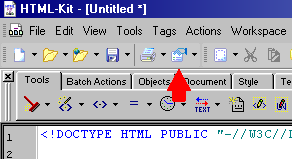
So... Got the Preferences dialog up and running?
...... ... ..
...Uhhh... heh heh... I'll just give you a moment or two to recover...

Okay, ready to go?
Let's do this thing...
Oh wait a minute. One more thing. If you make any extra configurations that I don't describe here, I highly recommend that you TAKE NOTES. There are literally hundreds of configuration options on the Preferences dialog alone and it is very easy to forget where some of them are. That being said, don't feel bad if you have to hit the PANIC BUTTON and start over. (I have and it's a good feeling...)
PANIC BUTTON: Be advised that if you inadvertently create a setting that you don't like and then forget how you did it —thus rendering it difficult or even impossible to reverse the process— you always have what I call the PANIC BUTTON at your disposal. First of all, shut down HTML Kit. Now, assuming that you used the default start menu settings during installation, start from your Windows task bar and click on:
Start » Programs » HTML-Kit » Reset Settings
This will essentially revert everything back to Step 9 of the installation process. (HTML Kit will still be installed but you'll have to answer the Confirm screen questions again.) After getting HTML Kit up and running again, you can just go back to my list of basic configurations and start anew.
Okay now let's do this thing...
Web Hosting 101
Learn about web hosting without the technobabble!
What is Web Hosting?
Best Free Web Hosting
Affordable Domain Names
Affordable Web Hosting
See also:
How to Make a Web Page
Free Website Templates
If you need a .COM web address, you can get one quick and easy at...
| <~ BACK | TOP | NEXT ~> |